WiFi Router Security Vulnerabilities and How to Fix Them
Learn to identify and fix the most common security vulnerabilities in your home WiFi router, from weak passwords to outdated firmware, with this step-by-step guide.
 By Elvis Dicki
Updated October 22, 2026
Your WiFi router’s security vulnerabilities can be fixed by updating its firmware, changing default settings to strong, unique passwords, disabling risky remote management features, and enabling the latest encryption. A systematic check of these areas will significantly harden your home network against common attacks.
Your WiFi router is the digital front door to your home network. If it’s left unsecured, it becomes an easy target for cybercriminals looking to steal personal data, hijack your internet connection, or gain access to your smart devices. Understanding and fixing these vulnerabilities is critical for protecting your digital life.
This guide will walk you through the most common router security flaws and provide clear, actionable steps to fix them. By the end, you’ll have a much more secure home network.

What You’ll Need
- Your router’s admin username and password (often found on a sticker on the router itself).
- A computer or smartphone connected to your WiFi network.
- Your router’s IP address (commonly 192.168.1.1 or 192.168.0.1).
- A secondary device, like a smartphone, to test connectivity after changes.
- A modern router with current security support, such as the NETGEAR Nighthawk Dual-Band WiFi 7 Router (RS90) or the TP-Link Deco 7 Pro BE17000 Tri-Band Wi-Fi 7 Whole mesh system, can provide a stronger security foundation than older models.
How to Fix WiFi Router Security Vulnerabilities, Step by Step
Step 1: Log Into Your Router’s Admin Panel
The first step is accessing your router’s configuration settings. Open a web browser on a device connected to your WiFi. In the address bar, type your router’s IP address (like 192.168.1.1) and press Enter. You will be prompted for an administrator username and password.
If you’ve never changed these, consult the sticker on your router or the manual. Common defaults are “admin” for both fields. Logging in successfully brings you to the dashboard where all security settings are managed. If the default credentials don’t work, you may need to perform a factory reset using the small button on the router.

Step 2: Update the Router’s Firmware
Outdated firmware is the single biggest vulnerability. Manufacturers release updates to patch security holes. In your admin panel, look for a section labeled “Administration,” “Advanced,” or “Firmware Update.” There should be an option to “Check for Updates” or similar.
If an update is available, follow the on-screen instructions to install it. Do not interrupt the power during this process. The router will reboot. Some modern routers, like many from NETGEAR or TP-Link, can enable automatic updates in their app or admin panel, which is highly recommended.
Step 3: Change All Default Passwords
You need to change two critical passwords: the WiFi network password and the router’s admin password. First, find the “Wireless” or “WiFi” settings. Change the network password (Pre-Shared Key) to a strong, unique passphrase of at least 12 characters, mixing letters, numbers, and symbols.
Next, find the “Administration” or “System” settings to change the router’s admin password. This should be different from your WiFi password and extremely strong. This prevents anyone who gains access to your network from easily taking over the router itself.
Step 4: Enable the Strongest WiFi Encryption
In your WiFi security settings, you’ll see an encryption option. Never use WEP or WPA (TKIP). These are broken and easily cracked. Select WPA2 (AES) or, if all your devices support it, WPA3. WPA3 is the latest and most secure standard, providing stronger protection against brute-force attacks.
If you have older devices that cannot connect after enabling WPA2/WPA3, it’s a sign they are a security risk. Consider upgrading those devices rather than downgrading your network’s security to an older, vulnerable protocol.

Step 5: Disable WPS and Remote Management
Wi-Fi Protected Setup (WPS) is a convenience feature that lets you connect devices with a button or PIN. Unfortunately, the PIN method is fundamentally flawed and can be brute-forced. In your admin panel, find the WPS settings and disable this feature entirely.
Also, locate “Remote Management” or “Access from WAN.” This feature allows you to access your router’s admin panel from the internet. Unless you have a specific, advanced need for it, disable it. This closes a major door that attackers use to target home routers.
Step 6: Create a Separate Guest Network
A guest network isolates your visitors’ devices from your main network where your computers, phones, and smart home devices live. Look for a “Guest Network” option in the wireless settings. Enable it and give it a different name (SSID) and password.
Ensure the guest network is also using WPA2 or WPA3 encryption. Some routers allow you to set time limits or bandwidth restrictions for the guest network. This simple step prevents a compromised guest device from becoming a launching pad into your private network.
Step 7: Review Connected Devices and Enable a Firewall
Finally, check the list of currently connected devices (often under “Attached Devices” or “DHCP Client List”). Verify you recognize everything. An unknown device could be a sign of an intruder.
Ensure your router’s built-in firewall is enabled—it almost always is by default. Look for “SPI Firewall” or “NAT Firewall” in security settings. For advanced users looking to build a custom, highly secure routing and firewall solution, a platform like the ZimaBoard 2 1664 x86 Home Server, Quad-Core N150 running open-source firewall software offers deep control.
Recommended Products
Upgrading to a router with modern security protocols and easier management can make maintaining a secure network much simpler. The following products support current standards like WPA3 and offer robust security features.
TP-Link Deco BE77 BE17000 Wi-Fi 7 Mesh System
TecaKiProjector Mini Projector: WiFi 6
Prime NETGEAR Nighthawk RS90 WiFi 7 Router

Prime 10x25 Compact Binoculars for Adults and Kids
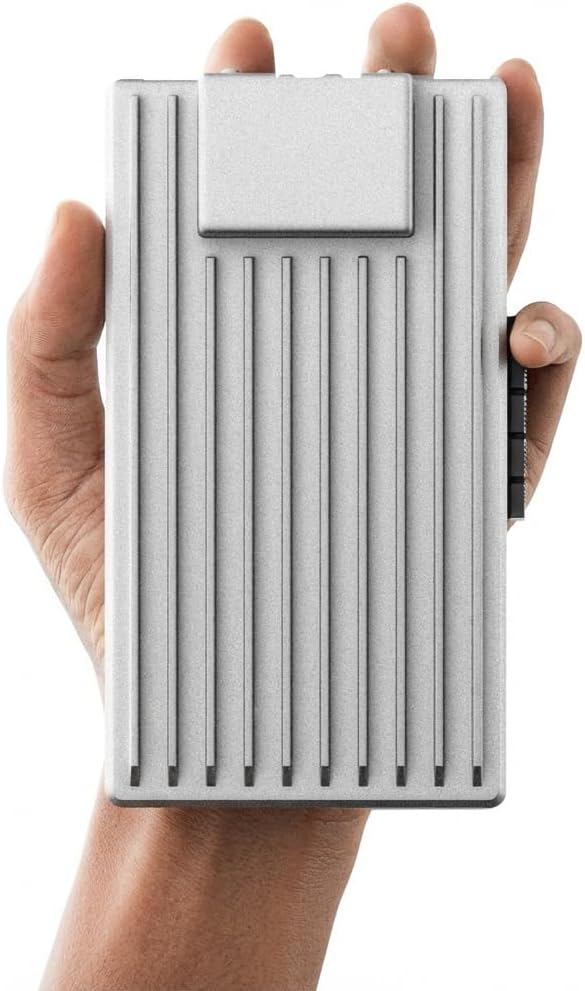
Prime ZimaBoard 2 1664 x86 Home Server N150 Quad-Core
As an Amazon Associate we earn from qualifying purchases. Product prices and availability are accurate as of the date/time indicated.
Common Mistakes to Avoid
- Never skip firmware updates. This is the equivalent of leaving your front door unlocked with a sign on it.
- Avoid using personal information in your WiFi name (SSID). A name like “SmithFamilyWiFi” gives attackers clues.
- Don’t reuse passwords. Your router admin password should be unique and not used for any other website or service.
- Resist the urge to enable “convenience” features like WPS when they are known security risks.
- Don’t assume your Internet Service Provider’s (ISP) router is secure. Often, they are not updated as frequently. Consider using it in “bridge mode” with your own, more secure router.
- Avoid placing your router near windows. Physically central placement improves signal inside and slightly reduces its broadcast range outside your home.
Frequently Asked Questions
How often should I check my router for updates?
You should check for firmware updates at least once every three months. Better yet, enable automatic updates if your router supports it. Security patches are released in response to newly discovered threats, so regular updating is non-negotiable.
Whatu0026#039;s the difference between WPA2 and WPA3?
WPA3 is the successor to WPA2 and provides several key security upgrades. It offers stronger encryption for public networks, better protection against brute-force password guessing, and forward secrecy, which means past traffic is protected even if your current password is compromised. Use WPA3 if your devices support it.
Is hiding my WiFi network name (SSID) a good security step?
No, hiding your SSID provides a false sense of security. It does not encrypt your traffic, and specialized tools can still discover u0022hiddenu0022 networks. It also causes connection issues for your legitimate devices. Focus on strong encryption (WPA2/WPA3) and a strong password instead.
Can someone hack my router if they have the password?
If an attacker has your WiFi password, they can join your network. This is why a guest network is important. However, they should not be able to access your router’s admin settings unless you have also used a weak or default admin password. This is why changing the admin password is a critical separate step.
Should I be worried about MAC address filtering?
MAC address filtering, which only allows specific device IDs to connect, is a very weak security measure. It is tedious to manage and easily bypassed, as MAC addresses can be spoofed. It should not be relied upon as a primary security control. Strong encryption and a strong password are far more effective.
Final Thoughts
Securing your WiFi router isn’t a one-time task but an ongoing habit. By following these steps—updating firmware, using strong unique passwords, enabling modern encryption, and disabling risky features—you transform your router from a vulnerable weak link into a robust first line of defense for your entire home network.
The peace of mind that comes from knowing your digital front door is locked is worth the short time investment. For more insights into building a secure home lab or network, explore our guide on cybersecurity trends or our practical device tutorials. Remember, in cybersecurity, proactive steps are always easier than recovering from a breach.
About the author

Elvis Dicki writes reviews and buying guides for CyberSecLabs.