How to Update Your WiFi Router Firmware and Secure Your Network
Learn the step-by-step process to safely update your router's firmware, a critical task for patching security vulnerabilities and improving your home network's performance and stability.
 By Elvis Dicki
Updated October 22, 2026
To update your WiFi router’s firmware, you need to access your router’s web interface, check for available updates, and follow the manufacturer’s instructions to download and install the new firmware. This process patches security holes, fixes bugs, and can add new features to your network.
Your WiFi router is the digital gatekeeper of your home, managing traffic between your devices and the internet. Like any piece of software, its internal operating system—the firmware—needs regular updates. These updates are not just about new features; they are essential security patches that fix vulnerabilities hackers could exploit to access your network. Learning how to perform this maintenance yourself is a cornerstone of good digital hygiene.
By the end of this guide, you’ll be able to confidently find, download, and install the latest firmware for your router, closing security gaps and ensuring your network runs as intended. We’ll also cover essential security settings to configure after the update.

What You’ll Need
- A computer, tablet, or smartphone connected to your WiFi network.
- Your router’s admin username and password (often found on a sticker on the router itself).
- The router’s model number (also on the sticker).
- A stable internet connection during the update process.
- A wired Ethernet cable (highly recommended for the most reliable update process).
- Patience—do not interrupt power to the router during the update.
How to Update Your WiFi Router Firmware, Step by Step
Step 1: Identify Your Router Model and Current Firmware
First, locate your router’s model number. It’s typically printed on a sticker on the bottom or back of the device, along with the default admin login and network name (SSID). Write this number down. Next, you need to access your router’s administrative interface. Open a web browser on a device connected to your network and type your router’s default gateway IP address into the address bar. Common addresses are 192.168.1.1, 192.168.0.1, or 10.0.0.1. Consult your router’s manual if you’re unsure.
Log in using the administrator credentials. Once inside, navigate to a section often called “Administration,” “Advanced,” “System,” or “Firmware Update.” Here, you should see information about your current firmware version. Note this version number as well.
Step 2: Check the Manufacturer’s Website for Updates
Do not rely solely on your router’s built-in update checker. For the most accurate and up-to-date information, visit the support website of your router’s manufacturer (e.g., Linksys, NETGEAR, TP-Link, ASUS). Use the model number you wrote down to find your specific router’s support page. Look for a “Downloads,” “Firmware,” or “Drivers” section.
Compare the latest firmware version listed on the website with the version currently installed on your router. If the website version is newer, you have an update available. Carefully read the release notes. They will tell you what the update fixes—look for critical security patches—and any special instructions.
Step 3: Download the Correct Firmware File
Download the firmware file from the manufacturer’s website directly to your computer. Ensure you download the file meant for your exact model number and hardware revision. Installing firmware for a different model can permanently damage (“brick”) your router, rendering it useless. Save the file to an easy-to-find location, like your desktop.
Step 4: Connect via Ethernet and Back Up Settings (Recommended)
Before proceeding, connect the computer you are using to perform the update directly to your router using an Ethernet cable. A wired connection is far less likely to drop during the critical update process than a WiFi connection. A lost connection mid-update can corrupt the firmware.
Next, within your router’s admin interface, look for an option to back up or save your current configuration. This creates a file with all your network names, passwords, and port forwarding rules. If anything goes wrong, you can restore these settings. This step is a safety net for your personalized network setup.
Step 5: Upload and Install the New Firmware
Now, navigate back to the firmware update section in your router’s admin panel. You will typically see a “Browse” or “Choose File” button. Click it and select the firmware file you downloaded. Initiate the update process. The router will warn you not to turn off the device or disconnect it. Heed this warning.
The update process can take several minutes. The router’s lights may flash erratically. This is normal. Your computer may lose its connection to the router and the internet. Wait patiently. Do not touch the router, unplug it, or try to refresh the browser page until the process is fully complete.

Step 6: Reconnect and Verify the Update
Once the router’s power light becomes stable again (after 5-10 minutes), reconnect your computer to the network, either via the Ethernet cable or WiFi. Log back into the router’s admin interface. Navigate to the firmware information page again. It should now display the new version number you downloaded, confirming a successful install.
Finally, restore your backed-up configuration file if necessary. Some updates may reset your router to factory defaults, so you’ll need to re-enter your WiFi name and password. If you restored a backup or re-entered settings, test your connection by browsing the web from a couple of your devices.
Recommended Products
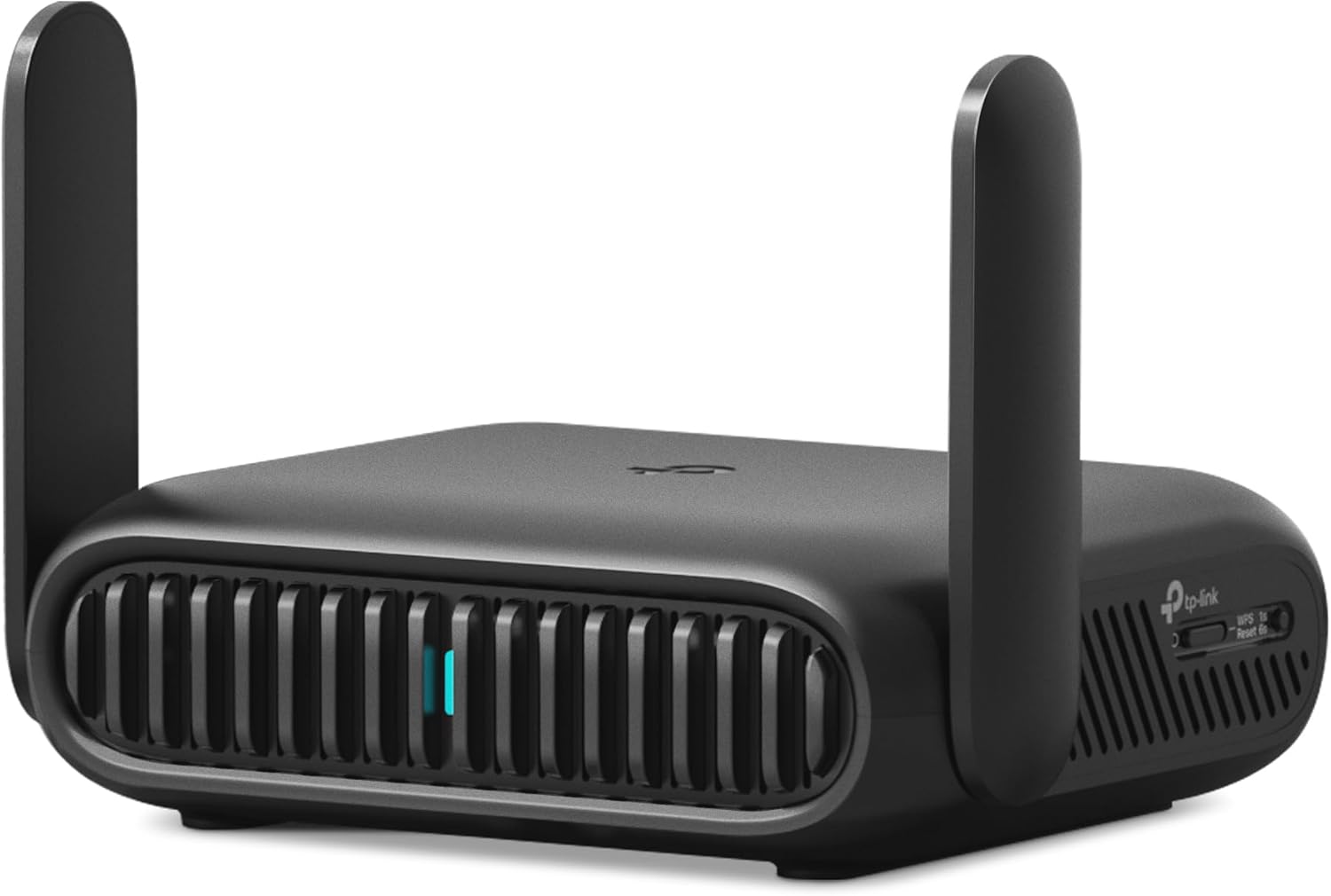
Keeping your network secure extends beyond your home router. For travelers, using a personal travel router like the Roam 7 BE3600 Wi-Fi 7 Portable Travel Router creates a private, encrypted layer on top of public hotel or cafe WiFi, protecting your data. For those looking to upgrade their primary home router to a model with robust security features and support for the latest standards, the NETGEAR Nighthawk WiFi 6E Router (RAXE500) is a powerful option. Securing your physical belongings is also part of a holistic security mindset; the Baggallini Securtex Anti-Theft Daytripper Sling offers features like locking zippers and slash-resistant materials for peace of mind on the go.
Prime Baggallini Securtex Anti-Theft Daytripper Sling
TP-Link Roam 7 BE3600 Wi-Fi 7 Travel Router 2.5G
NETGEAR Nighthawk WiFi 6E Router RAXE500 12-Stream
As an Amazon Associate we earn from qualifying purchases. Product prices and availability are accurate as of the date/time indicated.
Essential Security Settings to Configure After Updating
With fresh firmware installed, it’s the perfect time to audit and strengthen your router’s security settings. These steps build a strong defensive wall around your network.
- Change Default Admin Credentials: If you still use “admin” and “password,” change them immediately to a unique, strong password.
- Enable WPA3 Encryption: In your wireless security settings, select WPA3 if your devices support it, or WPA2/WPA3 mixed mode. Never use WEP.
- Create a Strong Guest Network: Set up a separate guest network with its own password. This isolates visitors from your main devices like computers and smart home gadgets.
- Disable WPS (Wi-Fi Protected Setup): This convenience feature is notoriously vulnerable. Turn it off in your router’s wireless settings.
- Disable Remote Management: Ensure the option to manage your router from the internet (outside your home network) is turned off unless you specifically need it.
- Keep a Hardware Inventory: Use your router’s “Attached Devices” list to see what’s connected. If you see an unknown device, investigate—it could be a neighbor or an intruder.
Frequently Asked Questions
How often should I update my routeru0026#039;s firmware?
Check for updates every three to four months. However, you should update immediately if you hear about a major security vulnerability affecting your router model. Some modern routers offer automatic updates, which you should enable for convenience and consistent protection.
What happens if the firmware update fails or my router gets u0026quot;brickedu0026quot;?
If the update fails and the router becomes unresponsive (u0022brickedu0022), most manufacturers have a recovery mode. This usually involves holding a reset button while powering on the router to force it into a state where you can upload firmware via a wired connection. The exact process is in your manual. If recovery fails, the router may need replacement.
My router is very old and no longer receives updates. What should I do?
If the manufacturer has stopped providing security updates for your router model, it has become a persistent vulnerability on your network. The safest course of action is to replace it with a newer, supported model. Continuing to use an end-of-life router puts all your connected devices at risk.
Can I update my routeru0026#039;s firmware from my phone?
Many modern routers have companion mobile apps that can check for and install firmware updates. This is often the easiest method. However, for major updates or if you encounter issues, using a computer with a wired Ethernet connection is still the most reliable method.
Does updating firmware change my WiFi password or network name?
Typically, a standard firmware update preserves all your settings. However, some major updates or recovery processes may reset the router to factory defaults. This is why backing up your configuration before updating is a critical safety step, as mentioned in our guide on u003ca href=u0022https://cyberseclabs.org/how-to-connect-soundbar-to-tv-with-hdmi/u0022u003ehow to connect soundbar to TV with HDMIu003c/au003e where preparation is also key.
Final Thoughts
Updating your router firmware is one of the most impactful, yet often overlooked, actions you can take for your personal cybersecurity. It directly addresses known weaknesses that could be exploited. By following this systematic guide—identifying your model, downloading from the official source, using a wired connection, and backing up your settings—you transform a potentially daunting task into a routine maintenance check.
Combine this practice with the post-update security hardening steps, and you’ll have a network that is not only more functional but significantly more resilient against threats. For more foundational knowledge on protecting your digital life, explore our list of cybersecurity books for beginners. Remember, in cybersecurity, an ounce of prevention, like a timely firmware update, is worth a terabyte of cure.
About the author

Elvis Dicki writes reviews and buying guides for CyberSecLabs.