How to Choose the Right WiFi Router: A Step-by-Step Buying Guide
Our guide walks you through the essential features to consider when buying a WiFi router, from internet speed compatibility to security and coverage, so you can find the perfect one for your home.
 By Elvis Dicki
Updated October 22, 2026
Choosing the right WiFi router involves matching its capabilities to your internet plan, the size of your home, and the number of devices you use. Focus on critical features like WiFi generation, mesh compatibility, and built-in security to get the best performance and value.
A great router is the backbone of your home network, impacting everything from work video calls to 4K streaming and online gaming. Unfortunately, with dozens of technical terms like WiFi 6E, MU-MIMO, and QoS, the buying process can feel overwhelming. This guide cuts through the jargon and provides a clear, step-by-step method to find a router that fits your specific needs and budget, ensuring you don’t overpay for features you won’t use.

What You’ll Need
- Your current internet plan details (advertised speed from your ISP).
- A rough sketch of your home’s layout to estimate coverage needs.
- A list of your primary online activities (e.g., gaming, streaming, video calls).
- An approximate count of WiFi-connected devices in your household.
- For a great budget-friendly option that supports modern WiFi 6, consider the TP-Link Archer AX1450 WiFi 6 Dual-Band as a solid starting point.
How to Choose a WiFi Router, Step by Step
Step 1: Match the Router to Your Internet Plan
Your router’s maximum speed must meet or exceed the speed you pay for from your Internet Service Provider (ISP). If you have a 500 Mbps plan, a router that caps out at 300 Mbps creates an immediate bottleneck. Look for the “WAN” or “Internet” port speed on the router’s specifications; a 1 Gigabit Ethernet port is standard for most plans up to 1,000 Mbps (1 Gbps). For faster multi-gigabit plans, you’ll need a router with a 2.5G, 5G, or 10G WAN port.
Remember, the “AX1800” or “AC1200” number on the box is a combined theoretical maximum across all bands, not the real-world speed you’ll get on a single device. Your actual speed will be lower due to distance, interference, and device limitations.

Step 2: Choose the Right WiFi Generation (WiFi 6, WiFi 6E, WiFi 7)
The WiFi generation determines the router’s efficiency, speed, and ability to handle multiple devices. WiFi 6 (802.11ax) is the current mainstream standard and a significant upgrade over older WiFi 5 (802.11ac). It offers better performance in crowded networks, improved battery life for devices, and higher potential speeds. For most homes, a WiFi 6 router is the best choice for future-proofing.
WiFi 6E adds access to the uncongested 6 GHz band, which is excellent for high-bandwidth applications like VR gaming or 8K streaming, but requires compatible devices. The newest standard, WiFi 7, offers even higher speeds and enhanced multi-link operations but is currently premium-priced. If you travel frequently and need a secure, portable network, a device like the Roam 7 BE3600 Wi-Fi 7 Portable Travel Router can provide advanced security features on the go, though note it operates as a dual-band router without 6 GHz support.
Step 3: Assess Your Coverage Needs (Single vs. Mesh)
For apartments or small, single-story homes under 1,500 square feet, a single powerful router with multiple external antennas may suffice. For larger homes, multi-story layouts, or homes with many obstructions (like brick walls), a mesh WiFi system is often the best solution. A mesh system uses a main router and one or more satellite nodes to blanket your entire space with a single, seamless network name.
When evaluating a single router, check if it supports “mesh-ready” or “easy mesh” technology. This allows you to add compatible nodes later if your coverage needs grow, offering a more flexible upgrade path than buying a completely new system.
Step 4: Evaluate Your Device Count and Usage
Modern households easily have 20+ connected devices—phones, laptops, tablets, smart TVs, cameras, and lights. A good router efficiently manages this traffic. Look for features like OFDMA and MU-MIMO (Multi-User, Multiple-Input, Multiple-Output). OFDMA allows the router to send data to multiple devices simultaneously on a single channel, reducing lag, which is crucial for smart homes and gaming. MU-MIMO lets the router communicate with several devices at once rather than cycling through them one by one.
If gaming or video calls are a priority, ensure the router has robust Quality of Service (QoS) settings. QoS lets you prioritize traffic from specific devices or applications (like your gaming PC or Zoom), ensuring they get the bandwidth they need even when others are streaming.
Step 5: Prioritize Security and Parental Controls
Your router is your network’s first line of defense. At a minimum, ensure it supports the latest WPA3 security encryption protocol, which is more secure than the older WPA2. Many routers now offer built-in security suites that provide features like automatic vulnerability scans, intrusion detection, and the ability to quarantine suspicious devices. These can be valuable for non-technical users.
For families, built-in parental controls are essential. Look for routers that allow you to easily pause internet access, set time limits for specific devices, and filter inappropriate content. The ability to manage these controls from a simple mobile app is a major convenience factor.
Step 6: Consider Ports and Extra Features
Don’t overlook physical connections. If you have devices that benefit from a wired connection for maximum speed and stability—like a gaming console, desktop PC, or NAS drive—ensure the router has enough Gigabit LAN ports (four is standard). A USB port can be handy for sharing a printer or a storage drive across your network.
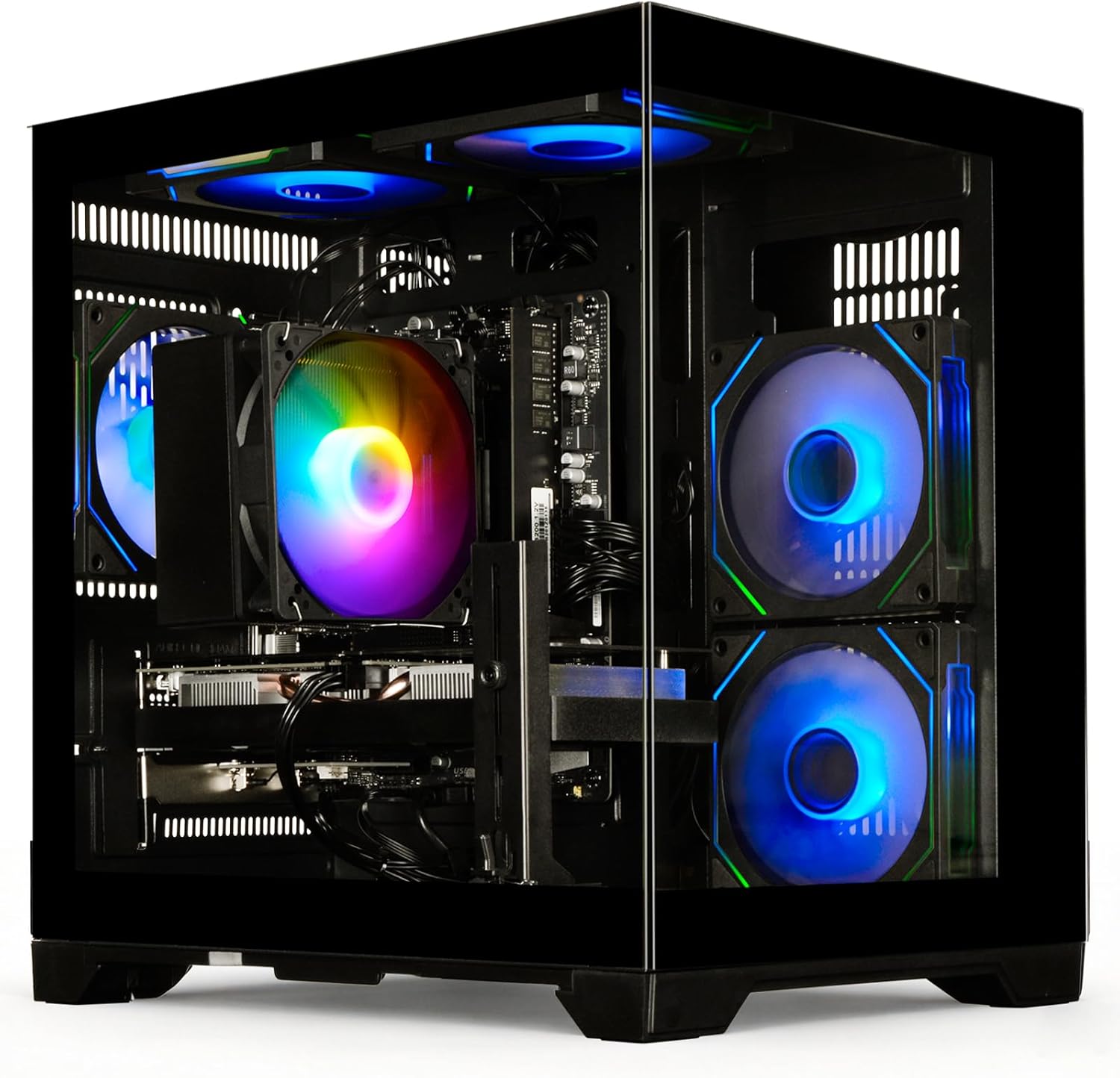
Some routers offer specialized features like VPN support (to run a VPN directly on the router for all connected devices) or dedicated gaming ports with optimized traffic handling. Only pay extra for these if you have a specific, advanced use case. For a powerful desktop that will connect via Ethernet for the ultimate stable connection, pairing your new router with a High-Performance Gaming Desktop PC can create an excellent home setup.
Recommended Products
The routers and networking-compatible devices below represent different needs, from budget-conscious upgrades to portable security and high-performance home systems. They can serve as helpful examples as you evaluate options based on the steps above.
Prime TP-Link Archer AX1450 WiFi 6 Dual-Band Router
Makita RP2301FC 3-1/4 HP Variable Speed Plunge
Prime Ryzen 7 5700X RTX 3050 Gaming PC 16GB DDR4 512GB
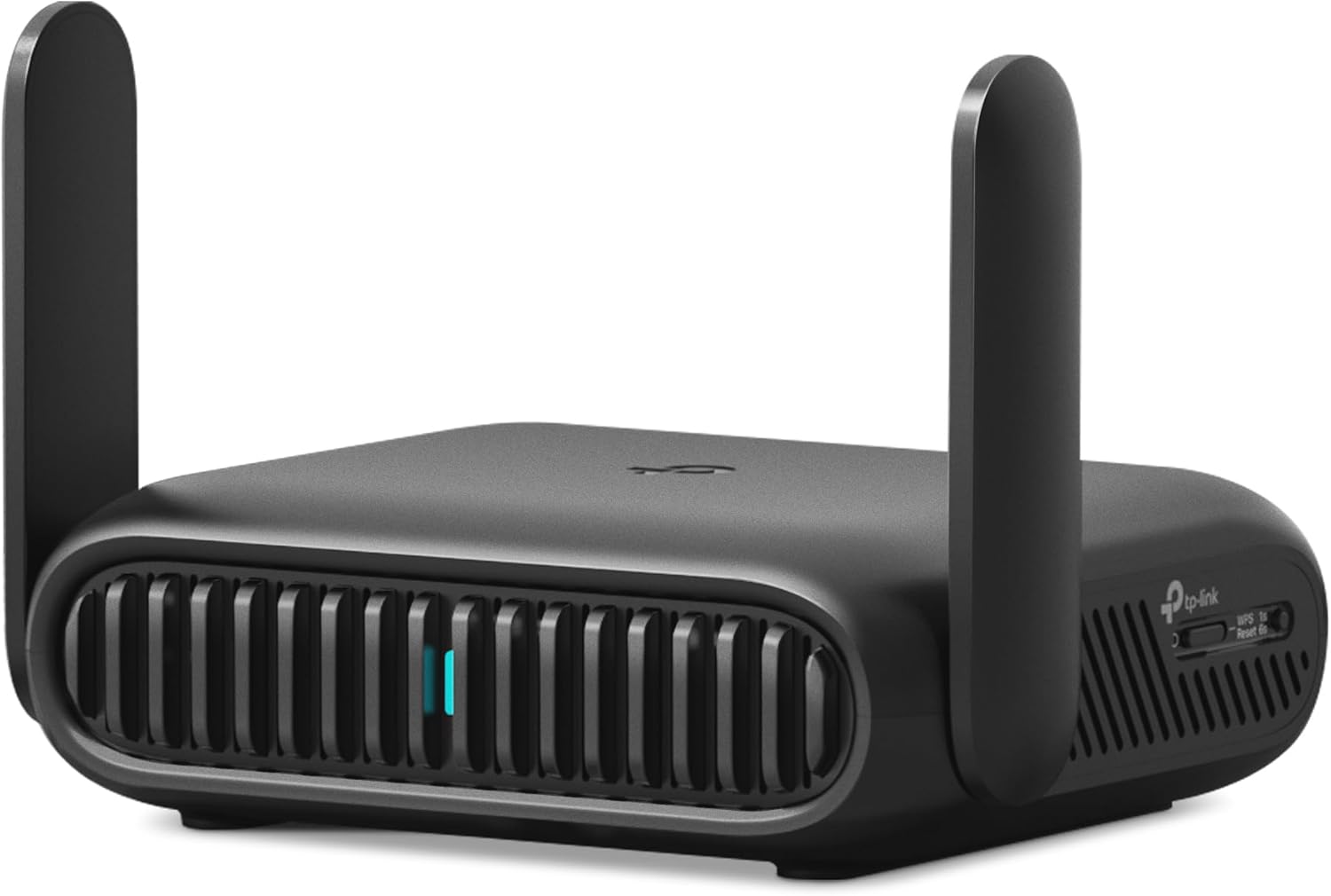
TP-Link Roam 7 BE3600 Wi-Fi 7 Travel Router 2.5G

LYNCAST X5 Pro 2000 ANSI Native 1080P Google TV
As an Amazon Associate we earn from qualifying purchases. Product prices and availability are accurate as of the date/time indicated.
Common Mistakes to Avoid
- Ignoring your internet plan speed: Buying a router vastly faster than your plan is wasteful, but buying one slower than your plan caps your speed.
- Placing the router poorly: Avoid hiding it in a cabinet, behind the TV, or in a corner. Central, elevated placement is key for good coverage.
- Forgetting about wired connections: For stationary devices like gaming PCs or smart TVs, an Ethernet cable will always provide a faster, more reliable connection than WiFi.
- Using default settings: Always change the default network name (SSID) and password. Leaving them makes your network easier to identify and attack.
- Overlooking firmware updates: Router manufacturers release updates to patch security vulnerabilities. Enable automatic updates if available, or check manually every few months.
- Assuming more antennas equal more speed: Antenna design and internal hardware are more important than a high antenna count, which is often a marketing tactic.
Frequently Asked Questions
Do I need to buy a router from my internet provider?
No, you can almost always use your own compatible router, which is often recommended. ISP-provided router/modem combos (gateways) are frequently basic models with rental fees. Using your own router typically gives you better performance, more features, and control, and eliminates the monthly rental charge.
How often should I replace my WiFi router?
A good rule of thumb is to consider replacing your router every 3-4 years. Technology advances quickly, and older routers may lack critical security updates, support for new devices, or the speed to handle modern internet plans. If you’re experiencing frequent drops, dead zones that didn’t exist before, or cannot get the speeds you pay for, it’s likely time for an upgrade.
What is the difference between a modem and a router?
A modem connects your home to your Internet Service Provider, translating the signal from your cable or fiber line. A router creates your local home WiFi network, allowing your devices to connect to the internet and communicate with each other. Often, ISPs provide a single device that combines both functions, called a gateway.
Is a more expensive router always better?
Not necessarily. A high-end router with WiFi 7 and a 10G port is overkill for a small apartment with a 100 Mbps internet plan. The u0022bestu0022 router is the one that matches your specific needs—coverage area, device count, and internet speed—without paying for capabilities you cannot use. Focus on the core features relevant to your situation.
Can a router improve my online gaming?
Yes, a good router can significantly improve gaming by reducing latency (ping) and preventing lag spikes. Features like Quality of Service (QoS) to prioritize gaming traffic, a strong WiFi 6 connection, and the option to use a wired Ethernet connection for your console or PC are all beneficial. For more on optimizing your setup, see our guide on u003ca href=u0022https://cyberseclabs.org/how-to-connect-a-subwoofer/u0022u003econnecting audio equipment for immersive gamingu003c/au003e.
Final Thoughts
Choosing the right WiFi router is less about finding the “best” one on the market and more about finding the best one for *your* home. By systematically working through your internet plan speed, house size, number of devices, and must-have features like security, you can make a confident choice that delivers reliable performance without overspending.
Start with the fundamentals covered in this guide, and you’ll be equipped to navigate product specifications and reviews effectively. Remember that proper placement and setup are just as important as the hardware itself. A well-chosen router, correctly configured, will provide a strong, secure foundation for everything you do online for years to come. For more insights into building a secure and efficient tech environment, explore other topics on our Blog.
About the author

Elvis Dicki writes reviews and buying guides for CyberSecLabs.